
Configuring a Raspberry Pi for headless operation without having to connect a keyboard and a screen, involves the following step
- Download the latest Raspbian image
- copy the Raspbian image to sdcard
- setup Wifi
- change pasword for pi
- enable sshd
- adduser for me,
- modify group
- add me to sudo
- add athorized ssh keys for me on my laptop so i can login without password
- set timezone
- set hostname
- set keyboard
- run raspi-config to configure various other stuff
Dependent on what it will be used for, there is still more to do, quite a few of the above steps needs to be done on the sdcard before you can access the Raspberry Pi remotely.
I have automated this proces by writing a small shell-script rpido
rpido -?
usage: rpido <options> cmd
 -h name   sets /etc/hostname on rpi
 -s	start shell on raspian
 -w	write raspian to sdcard
 cmd    chroot rpi cmd
installs files from template
configures wifi and sshd, and authorized keys
which takes care of the bulk of this.
To create a configured sdcard for a new RPI, I would typically do
- install a sd card on my laptop
- run: rpido -w -h newtoy -s
- check things are fine, exit
- move the sdcard to the RPI
This will download and install the latest raspbian to the sdcard, configure all the things mentioned above and set the hostname to newtoy, and finally drop you into a root-shell on the sdcard, where you could run raspi-config.
Yes I can execute arm-binaries on my ubuntu laptop, in a chroot environment on the filesystem on sdcard, check my shell-script below for how it is done.
#!/bin/bash
#
URL=$(curl -s https://downloads.raspberrypi.org/raspbian_lite_latest | awk -F\" '/http/ { print $2}')
LATEST=$(basename $URL .zip)
zipfile=DIST/$LATEST.zip
RPI_ROOT=sdcard
VERBOSE=1

 vecho() { [ $VERBOSE -lt 1 ] || echo $* >/dev/stderr; }
vvecho() { [ $VERBOSE -lt 2 ] || echo $* >/dev/stderr; }
SUDO() {
        vecho SUDO $*
        sudo $*
}
set_SD() {
        for d in /dev/sd[a-f] ;do
                if sudo gdisk -l $d 2>/dev/null| grep "^Model:.*SD/MMC">/dev/null; then
                        SD=$(basename $d)
                        break;
                fi
        done
}
loopdev_SD() {
        [ -f "$LATEST.img" ] || unzip -x $zipfile $LATEST.img
        LOOP=$(sudo losetup -f)
        SUDO losetup -P $LOOP $LATEST.img
        SD=$(basename ${LOOP}p)
}
is_mounted() {
        mount | grep $(realpath $1) >/dev/null
}
unmount_SD() {
        for i in /sys/block/${SD}/${SD}?;do
                SUDO umount /dev/$(basename $i) 2>/dev/null
        done
}
mount_SD() {
        unmount_SD
        mkdir -p $RPI_ROOT
        SUDO mount /dev/${SD}2 $RPI_ROOT
        SUDO mount /dev/${SD}1 $RPI_ROOT/boot
}
write_SD() {
        unmount_SD
        unzip -p $zipfile $LATEST.img | sudo dd of=/dev/${SD} bs=4M
}
unmount_all() {
        [ ! -z "$RPI_ROOT" ] || return 1
        [ -z "$keep_mount" ] || return 0
        FULLPATH=$(realpath ${RPI_ROOT})
        LOOP=$(mount | grep "/dev/loop[0-9]*p2.*$FULLPATH" | sed 's/p2.*$//')
        # SUDO rm -f ${RPI_ROOT}/usr/bin/qemu-arm-static
        for p in $(mount | grep $FULLPATH | cut -f3 -d' ' | sort -Vr); do
                SUDO umount $p
        done
        for d in $LOOP; do
                SUDO losetup -d $d
                #SUDO rm -f ${d}*
        done
}
usage() {
        unmount_all
        set +x
        [ $# == 0 ] || echo $*
        echo "usage: rpido <options> cmd"
        echo " -w       write raspian to sdcard"
        echo " -h name  sets /etc/hostname on rpi"
        echo " -s       start shell on raspian"
        echo " cmd      chroot rpi cmd"
        echo "installs files from template"
        echo "configures wifi and sshd, and authorized keys"
        exit
}

while getopts ?h:kqsvw opt;do
        case $opt in
        h) hostname=$OPTARG ;;
        k) keep_mount=y ;;
        q) VERBOSE=0 ;;
        s) rpi_shell=y ;;
        v) VERBOSE=$(($VERBOSE+1)) ;;
        w) write_sd=y ;;
        *) usage ;;
        esac
done
shift $(($OPTIND-1))
[ $VERBOSE -lt 2 ] || set -x
if [ "$rpi_shell" = y ]; then
        CMD="bash -i"
else
        CMD="$*"
fi
[ -f $zipfile ] || curl --create-dirs -o $zipfile $URL
set_SD
if [ -z "$SD" ];then
        loopdev_SD
else
        [ -z "$write_sd" ] || write_SD
fi
mount_SD
if [ -z "${RPI_ROOT}" -o ! -f "$RPI_ROOT/etc/rpi-issue" -o ! -f "$RPI_ROOT/boot/issue.txt" ]; then
        usage raspbian root not as expected
fi
SUDO rsync -a template/. $RPI_ROOT
[ -z "$hostname" ] || echo $hostname | sudo tee $RPI_ROOT/etc/hostname >/dev/null

if [ ! -z "$CMD" ]; then
        SUDO rsync /usr/bin/qemu-arm-static ${RPI_ROOT}/usr/bin/
        for f in proc dev sys;do
                is_mounted $RPI_ROOT/$f || SUDO mount --bind /$f $RPI_ROOT/$f
        done
        SUDO chroot ${RPI_ROOT} $CMD
fi

unmount_all
sync
The current content of template is:
$ find template/
template/
template/etc
template/etc/default
template/etc/default/keyboard
template/etc/shadow
template/etc/wpa_supplicant
template/etc/wpa_supplicant/wpa_supplicant.conf
template/etc/passwd
template/etc/timezone
template/etc/gshadow
template/etc/group
template/etc/sudoers.d
template/etc/sudoers.d/010_peter-nopasswd
template/home
template/home/peter
template/home/peter/.bashrc
template/home/peter/.ssh
template/home/peter/.ssh/authorized_keys
template/boot
template/boot/ssh
You probably have to install some tools on your ubuntu first, I would suggest:
sudo apt-get install gdisk realpath qemu-user-static zip rsync xz-utils file curl
Features:
- rpido always checks for the latest version of Raspian lite. It is much more effcient to download a new up-to-date version than to try to upgrade an earlier version at hand.
- if there is no sd-card installed, rpido will use a file-based loop mounted filesystem, much faster for debugging and trying out stuff,
- -k is a debugging option wich will leave the filesystem mounted, hence you can easily dive into it again with a simple chroot
- Even though the script is not running as root, there is a lot of sudo which can really do a lot of harm, so be sure to do a backup before, for me it only takes one command
sudo zfs snapshot -r t470@20181027

# and to restore f.ex. the root filesystem to this snapshot

sudo zfs rollback t470/ROOT/ubuntu-18.04-t470@20181027
If you are still wondering how I manage to run arm-binaries on an intel laptop the secret-sauce is line 108-112 in the above script
And finally I would recommend that the bash prompt shows whether you are root by color, like this little example of rpido use demonstrates:
peter@t470:~> ./rpido -s
SUDO losetup -P /dev/loop14 sdcard
SUDO mount /dev/loop14p2 sdcard
SUDO mount /dev/loop14p1 sdcard/boot
SUDO rsync -a template/. adcard
SUDO rsync /usr/bin/qemu-arm-static sdcard/usr/bin/
SUDO mount –bind /proc sdcard/proc
SUDO mount –bind /dev sdcard/dev
SUDO mount –bind /sys sdcard/sys
SUDO chroot sdcard bash -i
root@raspberrypi:/# cat ~peter/.bashrc
export PATH=/bin:/sbin:/usr/bin:/usr/sbin:/usr/local/bin:/usr/local/sbin:~peter/bin
RED=$(tput setaf 1)
BLUE=$(tput setaf 4)
NORMAL=$(tput sgr0)
HOSTNAME=$(cat /etc/hostname)
if [ $(id -u) -eq 0 ]; then # you are root, make the prompt red
PS1=”\[${RED}\]\u@${HOSTNAME}:\W#\[${NORMAL}\] ”
else
PS1=”\[${BLUE}\]\u@${HOSTNAME}:\W>\[${NORMAL}\] ”
fi
root@raspberrypi:/# exit
SUDO umount sdcard/sys
SUDO umount adcard/proc
SUDO umount adcard/dev
SUDO umount sdcard/boot
SUDO umount sdcard
SUDO losetup -d /dev/loop14
peter@t470:~>
3D-printers are often Arduino compatible with an Atmega2560 and so is mine. The Atmega2560 has 4 serial ports, Serial-0 is used to communicate to the host, but the pins for Serial 1-3 are used for other purposes Serial-1 for the Z endstops, and Serial-3 for the Y endstops. Since I already modify my printing software (Marlin) it was quite easy to move the endstops other pins.
I made some changes to the Marlin source to get the other serial ports working, and as usual with Arduino you always end up in deep water when you want to change the underlying system, and Marlin have their own custom Serial driver, but I got something working on an Arduino Mega I had lying around and was now ready to install the software on the 3D-printer.
The printer controller on my 3D-printer is a MKS-base-v1.4 which should be very close to a standard RepRap controller. But my changes which worked on the stock Arduino did not work here. After getting my multimeter out I found that the Y/Z stop inputs had resistors in series with them probably do avoid noise picked up by the lead to the endstop. But it also ruined my 115200 baud debug-serial stream.
What now – get the soldering iron out or ? the resistors are tiny so I was looking for another solution and here we have underlying reason for these blog-posts.
Using 115200 speeds over a bitbang serial port would have crippled the 3D-printer it takes far too long. So I speed things up as much as I could ending at 5.3Mbit/sec.
I am quite pleased with my solution, 35 instruction or 2usec per byte is quite fast, probably comparable to just doing the buffering of serial output using the standard Arduino HardwareSerial code.
I was a little surprised of how good it worked so I thought I would give it some beating. to see if the host system (Linux) could sustain those speed so here we go:
I downloaded this little sketch to the arduino/MKS_base_v1.4
#include "dprint.h"

void setup()
{
	char *cpt;
	dprint_init(1);		// you must set TX_PORT and TX_BIT in dprint.cpp
	DPRINTLN("NAME #", cpt = "StorePeter", strlen(cpt));
}

void loop()
{
	static uint16_t n, m;
	n++;
	if (n > 10000) {	// around 100 times a second when idle
		n = 0;
		m++;
		if (m > 100) {	// every second when idle
			m = 0;
			DPRINTLN("\n1,000,000 loops");
		}
		// dwheel();	// wheel moves at 100Hz
	}
	dwheel();
	// stress test move: dwheel() here
	// a missing Backspace or other char would easily be seen
}
connecting to the USB-uart
- picocom -l /dev/ttyPL2302 -b5333333 –imap lfcrlf
show a very stable output of the wheels running and a the million loop line printing at regular intervals so everything looks good, but is it perfect? and what speed do we actually see?
Lets find out. This one-liner should give us some data to look at:
while true; do date;sleep 1;done & hexdump -c < /dev/ttyPL2303
the output looked like this
Mon Feb 12 21:23:29 EST 2018
01256a0  \b   /  \b   |  \b   \  \b   -  \b   /  \b   |  \n   1   ,   0
01256b0   0   0   ,   0   0   0       l   o   o   p   s  \n  \b   \  \b
01256c0   -  \b   /  \b   |  \b   \  \b   -  \b   /  \b   |  \b   \  \b
*
Mon Feb 12 21:23:30 EST 2018
Mon Feb 12 21:23:31 EST 2018
Mon Feb 12 21:23:32 EST 2018
Mon Feb 12 21:23:33 EST 2018
Mon Feb 12 21:23:34 EST 2018
Mon Feb 12 21:23:35 EST 2018
Mon Feb 12 21:23:36 EST 2018
Mon Feb 12 21:23:37 EST 2018
0312a20   -  \b   /  \b   |  \b   \  \n   1   ,   0   0   0   ,   0   0
0312a30   0       l   o   o   p   s  \n  \b   -  \b   /  \b   |  \b   \
0312a40  \b   -  \b   /  \b   |  \b   \  \b   -  \b   /  \b   |  \b   \
*
Mon Feb 12 21:23:38 EST 2018
Mon Feb 12 21:23:39 EST 2018
Mon Feb 12 21:23:40 EST 2018
Mon Feb 12 21:23:41 EST 2018
Mon Feb 12 21:23:42 EST 2018
Mon Feb 12 21:23:43 EST 2018
Mon Feb 12 21:23:44 EST 2018
Mon Feb 12 21:23:45 EST 2018
04ffda0  \b   -  \n   1   ,   0   0   0   ,   0   0   0       l   o   o
04ffdb0   p   s  \n  \b   /  \b   |  \b   \  \b   -  \b   /  \b   |  \b
04ffdc0   \  \b   -  \b   /  \b   |  \b   \  \b   -  \b   /  \b   |  \b
*
Mon Feb 12 21:23:46 EST 2018
Mon Feb 12 21:23:47 EST 2018
Mon Feb 12 21:23:48 EST 2018
Mon Feb 12 21:23:49 EST 2018
Mon Feb 12 21:23:50 EST 2018
Mon Feb 12 21:23:51 EST 2018
Mon Feb 12 21:23:52 EST 2018
Mon Feb 12 21:23:53 EST 2018
06ed110   \  \b   -  \b   /  \b   |  \b   \  \b   -  \b   /  \n   1   ,
06ed120   0   0   0   ,   0   0   0       l   o   o   p   s  \n  \b   |
06ed130  \b   \  \b   -  \b   /  \b   |  \b   \  \b   -  \b   /  \b
Here we have 3 execution cycles of a million loop() calls.
- second 29-37 position 01256ad-0312a28 diff 8 seconds 2020219 (base10)
- second 37-45 position 0312a28-04ffda3 diff 8 seconds 2020219 (base10)
- second 45-53 position 04ffda3-6ed11e diff 8 seconds 2020219 (base10)
They are all the same as is 1001*101*2+17=2020219. so we didn’t loose a single byte !
How about the speed ?
2020219 bytes / 8 seconds = 252527 bytes/sec. Each byte is comprised of a start-bit, 8bit data, and a stop bit , hence we have an effective datarate of about 2.5Mbit/sec – impressive
ttyUSB0 or ttyUSB1 which is the Arduino and which is the debug stream
In my case all my arduinos use either a CH340 serial chip or an FTDI232 while all my loose USB-serial-TTL adapters use PL2303. to get the system to present the devices based on their type I have created this file:
cat <<EOF >/etc/udev/rules.d/99-ttyUSB.rules
ACTION=="add", ATTRS{idVendor}=="0403", ATTRS{idProduct}=="6001", SYMLINK+="ttyFTDI"
ACTION=="add", ATTRS{idVendor}=="067b", ATTRS{idProduct}=="2303", SYMLINK+="ttyPL2303"
ACTION=="add", ATTRS{idVendor}=="1a86", ATTRS{idProduct}=="7523", SYMLINK+="ttyCH340"
EOF
Hence to open a terminal to the Arduino do:
picocom -l /dev/ttyCH340 -b 115200
and to see the debug-stream do:
picocom -l /dev/PL2303 -b5333333 --imap lfcrlf
And the FreeBee Bonus
I wish I could say that this bonus is by design, but it is more of lucky coincidence.
If you have a look at dprint_init() from the last post, you see that I disable debug-prints all together when the serial output pin is pulled low with f.ex. a 2k2 resistor.
If you leave the USB-uart connector plugged into you system with a ground and serial connection, USB-uart will pull the pin down when it not powered by it USB connection. Hence:
- If the USB-uart is unplugged (on the USB side) debugging is disabled altogether.
- When the USB-uart is connected to your computer, debugging will be enabled.
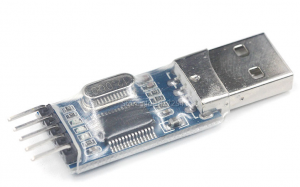
As it is now you need to restart the unit to have it detect the change but you could make it dynamic by calling dprint_init(LEVEL) regularly from you main loop.
(note to the early adopters: There was a missing ‘()’ when it was first published this is fixed now)
From now on, all my projects will contain a permanent USB-uart for the debug-stream. it is an extra cost of 50 cent, two wires and a pin. I can afford that.
Happy hacking
StorePeter peter@storepeter.dk
]]>Over the years I have perfected my way of performing this art of debugging, addressing many of its shortcomings namely:
- Serial port – not all devices have an UART, or the UART might be used already. Out of band debugging is still preferable – like having separate lines for stdout and stderr.
- RAM vs ROM – on Harvard machines (8-bit AVR) you have to do some special magic to use/put strings in ROM, even if you are not limited by the Harvard architecture, your linker may not put your const in flash automatically, and you still need some magic.
- Timing impact – sending text over a serial line takes time, transmission of “hello world” takes 1 millisecond @ 115200 Baud, this might ruin the functionality of the routine you are debugging, you could of course postpone your problem with ring-buffers, use interrupts…., and now you have also got that to debug ;-(. With the solution presented here “hello world” would transmit in 20usec @5.3Mbit.
- Cleaning up – once it is all working you comment out, or worse remove the debug prints which we used to get it rolling. Unfortunately bugs might return – well hopefully we were using git, which can help getting the debug prints back.
When I worked on my first embedded system 37 years ago, 1200 was not bad, and 9600 baud was just blazing. Today we are using USB-serial adapters costing less than a dollar delivered all the way from Ali-Land. Looking at the data-sheet for f.ex. PL2303MX we see that it supports up to 12Mbit/sec and have 256 bytes buffers for both input and output, this is certainly something we should take advantage of. – Lets go.
Serial Port
So how fast can we go? – I am only interested in output, using no feedback, the simplest is just a bit-bang serial implementation. An 8-bit AVR and probably most CPUs can handle a bit in 3 instruction
- test bit in the character we want to send
- set bit in byte we have to output on the port
- and finally write the byte to the output pins
The code to send a byte on an atmega* looks like this, we copy the full 8bit-port to _tmp_reg_ so we do not have to re-read it on every bit (saves a cycle), interrupts must be disabled, because other parts of the code might change other pins on that port.
void dprint_init(uint8_t level)
{
        DPRINT_TX_DDR &= ~_BV(DPRINT_TX_BIT);   // set tx_bit as input
        DPRINT_TX_PORT |= _BV(DPRINT_TX_BIT);   // stop bit and weak pull-up ~ 20kohm
        if ((DPRINT_TX_PORT & _BV(DPRINT_TX_BIT)) == 0) {
                level = 0; // pull the tx_bit down by a 2k2 resitor to disable debug prints
        }
        DPRINT_TX_DDR |= _BV(DPRINT_TX_BIT);    // set tx_pin as output
        debug_level = 1;
        DPRINTLN("debug_level", level);
        debug_level = level;
}
void _dprintc(char ch)  // irq disabled for 33 instruction that is 2usec
{
        __asm__ __volatile__(
        "   in r25,__SREG__\n\t"                // get interrupt state
        "   cli\n\t"                            // disable irq
        "   in __tmp_reg__,%[tx_port]\n\t"      // read the full port
        "   clt\n\t"                            // T=0
        "   bld __tmp_reg__,%[tx_bit]\n\t"      // set tx_bit=T
        "   out %[tx_port],__tmp_reg__\n\t"     // sending Startbit
        "0: bst %[ch],0\n\t"                    // T=lsb
        "   bld __tmp_reg__,%[tx_bit]\n\t"
        "   out %[tx_port],__tmp_reg__\n\t"     // sending lsb
        "1: bst %[ch],1\n\t"
        "   bld __tmp_reg__,%[tx_bit]\n\t"
        "   out %[tx_port],__tmp_reg__\n\t"
        "2: bst %[ch],2\n\t"
        "   bld __tmp_reg__,%[tx_bit]\n\t"
        "   out %[tx_port],__tmp_reg__\n\t"
        "3: bst %[ch],3\n\t"
        "   bld __tmp_reg__,%[tx_bit]\n\t"
        "   out %[tx_port],__tmp_reg__\n\t"
        "4: bst %[ch],4\n\t"
        "   bld __tmp_reg__,%[tx_bit]\n\t"
        "   out %[tx_port],__tmp_reg__\n\t"
        "5: bst %[ch],5\n\t"
        "   bld __tmp_reg__,%[tx_bit]\n\t"
        "   out %[tx_port],__tmp_reg__\n\t"
        "6: bst %[ch],6\n\t"
        "   bld __tmp_reg__,%[tx_bit]\n\t"
        "   out %[tx_port],__tmp_reg__\n\t"
        "7: bst %[ch],7\n\t"
        "   bld __tmp_reg__,%[tx_bit]\n\t"
        "   out %[tx_port],__tmp_reg__\n\t"     // sending msb
        "8: set\n\t"                            // T=1
        "   bld __tmp_reg__,%[tx_bit]\n\t"
        "   out %[tx_port],__tmp_reg__\n\t"     // sending Stopbit
        "   out __SREG__,r25\n\t"               // restore irq
        :
          [ch] "+r" (ch)
        :
          [tx_port] "M" (DPRINT_TX_PORT_ADDR),
          [tx_bit] "M" (DPRINT_TX_BIT)
        :
          "r25"
        );
}
We need a little initialization and on the atmega2560 we need to use a port which can be accessed as a register.
#include "dprint.h"

#define DPRINT_TX_PORT PORTB
#define DPRINT_TX_DDR DDRB
#define DPRINT_TX_BIT 5

#define DPRINT_TX_PORT_ADDR _SFR_IO_ADDR(DPRINT_TX_PORT)

uint8_t debug_level;
void dprint_init(uint8_t level)
{
        DPRINT_TX_DDR &= ~_BV(DPRINT_TX_BIT);   // set tx_bit as input
        DPRINT_TX_PORT |= _BV(DPRINT_TX_BIT);   // stop bit and weak pull-up ~ 20kohm
        if (DPRINT_TX_PORT & _BV(DPRINT_TX_BIT) == 0) {
                level = 0; // pull the tx_bit down by a 2k2 resitor to disable debug prints
        }
        DPRINT_TX_DDR |= _BV(DPRINT_TX_BIT);    // set tx_pin as output
        debug_level = 1;
        DPRINTLN("debug_level", level);
        debug_level = level;
}
void hello(void)
{
  char *txt = "Hello World";
  while (*txt) {
    dprintc(*txt++);
  }
}
Well we got our message out there, now we just need to pick it up.
The CPU which in this case is an atmega2560 operates at 16Mhz, with a bit time of 3 instructions we end up with a baudrate of 5333333 that is about 5.3 Mbit/sec
Newer versions of Linux already support non-standard baudrate, so we just need a terminal emulation program which does the same – pyserial will do the job .
My favorite picocom is an older version (1.7) on Ubuntu-16.04. The remedy is to just get and install the newest version (3.2a)
git clone https://github.com/npat-efault/picocom.git
cd picocom
make
sudo cp picocom /usr/local/bin
sudo cp picocom.1 /usr/local/share/man/man1

picocom -l /dev/ttyUSB0 -b 5333333 --imap lfcrlf
And voila we will be greeted with “Hello World” once the ATMEGA2560 calls hello()
The best thing about this approach is that you can get going in a very short time on a new processor, literally just translate the above assembler code to what ever is spoken on the new processor, no care about baudrate or silly things like that on the embedded CPU. Just adjust the baudrate on the host system (Linux), take the processors clock-rate and divide with how long one bit takes – or if you are the lazy type try them all FREQ/1 FREQ/2 FREQ/3 …. And before you know it you are ready to get working on the new toy.
Debug strings in Flash
Harvard CPU have code and data in separate spaces, 8-bit AVR, i8051, stm8 are of this type. and can be a painfull experience, I certainly prefer Von Neumann CPU like MSP430 in any case depending on the compiler we might have to do something to make sure that constant text strings are placed in Flash and not in RAM.
Using a little “include-file” magic we can hide some of this idiocrasy, that way we can use the same source code on Harvard and Von Neumann CPUs, and if we are using C++ we can use overloaded funtions to make our life easier. The goal here is to supply 3 funtions, to print our debugging information
- dprint( variable )
- DPRINT( “text which will be stored in Flash” , variables…) ;
- DPRINTLN( “text which will be stored in Flash” , variables… )
The actual c++ overload function, is called from within a macro which test for debug_level and serializes the print statements.
In the C-world we normally use the printf(), so lets compare the two. On a Linux box you might write something like
- if (debug) printf(“Name \”%s\” is %d bytes tall\n”, cpt=“StorePeter”, strlen(cpt));
- result: Name “StorePeter” is 10 bytes tall
The printf() function will parse “Name \”%s\” is %d bytes tall\n”, printing the text and calling subroutines on the way to print the string and the number.
On our embedded system we could write:
- DPRINTLN(“Name #”, cpt=“StorePeter”, strlen(cpt));
- result: Name # StorePeter 000a
Not as readable as the printf(), but for debug purposes this is fine, and much more efficient both in code size and speed compared to using printf(). The macro DPRINTLN() basicly expands to
if (debug_level > 0) {
    _dprint(F("NAME #"));
    _dprintc(' ');
    _dprint(cpt = "StorePeter");
    _dprintc(' ');
    _dprint(strlen(cpt));
    _dprintc('\n');
}
The file dprint.h with all its magic is shown below
extern uint8_t debug_level;
char nibble2ascii(uint8_t);
void _dprintc(char);
void _dprint(uint8_t);
void _dprint(uint16_t);
void _dprint(uint32_t);
void _dprint(int8_t);
void _dprint(int16_t);
void _dprint(int32_t);
void _dprint(char *);
void _dprint(const char *);
void _dprint(const __FlashStringHelper *);
void dprint_init(uint8_t);
void dwheel(void);  // have one in loop() to show your system is alive

#define   dprint(v) if (debug_level>0) _dprint(v)
#define  ddprint(v) if (debug_level>1) _dprint(v)
#define dddprint(v) if (debug_level>2) _dprint(v)

#define dprint3(level,trail,string) do {\
	if (debug_level>level) {\
		_dprint(F(string)); _dprintc(trail);\
	}\
} while (0)
#define dprint4(level,trail,string,value) do {\
	if (debug_level>level) {\
		_dprint(F(string)); _dprintc(' ');\
		_dprint(value); _dprintc(trail);\
	}\
} while (0)
#define dprint5(level,trail,string,val1,val2) do {\
	if (debug_level>level) {\
		_dprint(F(string)); _dprintc(' ');\
		_dprint(val1); _dprintc(' ');\
		_dprint(val2); _dprintc(trail);\
	}\
} while (0)
#define dprint6(level,trail,string,val1,val2,val3) do {\
	if (debug_level>level) {\
		_dprint(F(string)); _dprintc(' ');\
		_dprint(val1); _dprintc(' ');\
		_dprint(val2); _dprintc(' ');\
		_dprint(val3); _dprintc(trail);\
	}\
} while (0)

#define GET_MACRO(_3,_4,_5,_6,NAME,...) NAME
//https://stackoverflow.com/questions/11761703/overloading-macro-on-number-of-arguments
#define   DPRINT(...) GET_MACRO(__VA_ARGS__, dprint6, dprint5, dprint4, dprint3, dprint2)(0,' ',__VA_ARGS__)
#define  DDPRINT(...) GET_MACRO(__VA_ARGS__, dprint6, dprint5, dprint4, dprint3, dprint2)(1,' ',__VA_ARGS__)
#define DDDPRINT(...) GET_MACRO(__VA_ARGS__, dprint6, dprint5, dprint4, dprint3, dprint2)(2,' ',__VA_ARGS__)

#define   DPRINTLN(...) GET_MACRO(__VA_ARGS__, dprint6, dprint5, dprint4, dprint3, dprint2)(0,'\n',__VA_ARGS__)
#define  DDPRINTLN(...) GET_MACRO(__VA_ARGS__, dprint6, dprint5, dprint4, dprint3, dprint2)(1,'\n',__VA_ARGS__)
#define DDDPRINTLN(...) GET_MACRO(__VA_ARGS__, dprint6, dprint5, dprint4, dprint3, dprint2)(2,'\n',__VA_ARGS__)
You can dynamically turn debugging on or off, by changing the debug_level variable,
When you got parts of your code bug-free turn DPRINT() into DDPRINT() which will only print at a higher debug level. so you will not see them, but ypu can still get the debug prints back without much effort.
Once your code is working set debug_level = 0, pulling down the tx_pin does exactly that, and you will have an production version with very little overhead, if an error resurfaces, you can change the debug_level variable and follow what is going on.
Another tip could be modifying the debug_level variable around code you working on f.ex.
...
debug_level++;
this_is_function_I_am_debugging();
debug_level--;
...
The _dprint() overload functions are trivial as you see below
char nibble2ascii(uint8_t d)
{
        d &= 0xf;
        if (d < 10)
                d += '0';
        else
                d += 'a' - 10;
        return (d);
}
void _dprint(uint8_t i)
{
        dprintc(nibble2ascii(i>>4));
        dprintc(nibble2ascii(i));
}
void _dprint(uint16_t i)
{
        dprint((uint8_t)(i>>8));
        dprint((uint8_t)i);
}
void _dprint(uint32_t i)
{
        dprint((uint16_t)(i>>16));
        dprint((uint16_t)i);
}
void _dprint(int8_t i)
{
        dprint((uint8_t)i);
}
void _dprint(int16_t i)
{
        dprint((uint16_t)i);
}
void _dprint(int32_t i)
{
        dprint((uint32_t)i);
}
void _dprint(char *string)
{
        unsigned char c;
        while ((c = *string++)) {
                dprintc(c);
        }
}
void _dprint_F(const char *string)
{
        unsigned char c;
        while ((c = pgm_read_byte(string++))) {
                dprintc(c);
        }
}
void dwheel(void)
{
	static uint8_t n;
	_dprintc('\b');
	n++;
	if (n>3) n=0;
	_dprintc("-/|\\"[n]);
}
If you are tight on space, or want to move the code to a smaller CPU you can get rid of all the debugging code, just include the file no_dprint.h (instead of dprint.h) which is shown below.
#define nibble2ascii(...)
#define dprint_init(...)
#define _dprintc(char)
#define _dprint(...)
#define _dprint(...)
#define _dprint(...)
#define _dprint(...)
#define _dprint(...)
#define _dprint(...)
#define _dprint(...)
#define _dprint(...)
#define _dprint(...)
#define   dprint(v)
#define  ddprint(v)
#define dddprint(v)
#define   DPRINT(...)
#define  DDPRINT(...)
#define DDDPRINT(...)
#define   DPRINTLN(...)
#define  DDPRINTLN(...)
#define DDDPRINTLN(...)
Show me the code
The idea and the code is yours free to use and explore, released on the BeerWare license no strings attached, you might even have had this idea yourself long before this was written.
I know I have invented a lot of stuff which other people invented before me – and they didn’t even ask.
Just download test_dprint.zip and try it out on your arduino, it worked for me under Arduino-1.8.5
stm8s Microcontroller
I have implemented the same functionality for stm8s microprocessor, different instruction-set, different compiler, and slightly different language – C vs C++ Debugging @ 5.3Mbit/sec (5333333 Baud) on stm8s microprocessors
Other Microcontrollers
And the home-work until next time: Write a version for your favorite microcontroller and I will put a link in right here, maybe you can even make it faster than mine.
Stress test
If you are curious if the system can sustain this speed please have look at Stress testing 5.3Mbit/sec debug-stream from Arduino
DebugSerial the Arduino way
I have implemented a version which can replace the standard Serial class normally used on Arduino, you can read more about it here: MySensors Debug print @ 5.3Mbit/sec freeing Hardware Serial Port
Happy hacking
StorePeter peter@lorenzen.us